


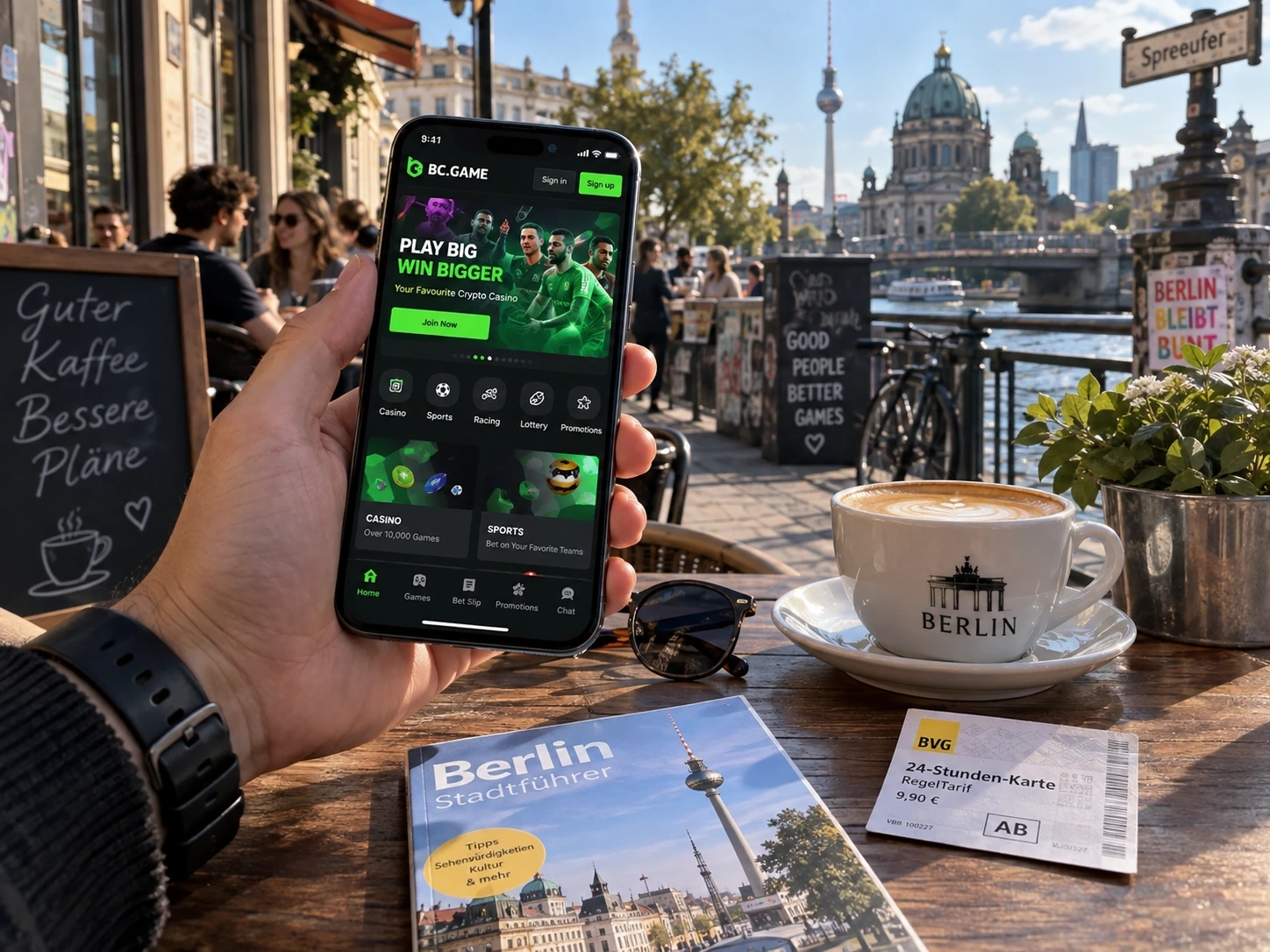
BC Game mobile access gives you the Casino, Sportsbook, Wallet, promotions and account tools from the same profile you use on desktop. Your balance, My Bets, Favourites, Transaction and VIP progress stay connected when you move between devices.
You can use the responsive website without installing anything, add BC.GAME to an iPhone or iPad Home Screen, or use the official Android installation route when one is currently provided by the platform.
Features of the BC Game Mobile App
- Casino access with Search, categories, providers and Favourites.
- Sportsbook access for pre-match and live events.
- My Bets for open and settled sportsbook tickets.
- Wallet for Deposit, Withdraw and Transaction checks.
- Bonus and Rollover for active promotions.
- Security and 2FA controls for the same account.
- Live Support and Help Center access from mobile.
Mobile is particularly useful for short account checks. You can confirm a payment, open a settled ticket or review a reward without starting another Casino or Sportsbook session.
Search and Favourites make the Casino practical on a small display, while Sportsbook filters keep live and upcoming events manageable. You can move from an accepted bet to My Bets, or from a Wallet action to Transaction, without returning to desktop.
The same account also keeps promotion state. If Rollover was active on desktop, opening the mobile account does not restart it. VIP level and claimed rewards stay tied to the profile.
| Mobile task | Best section |
| Check an accepted sports bet | My Bets |
| Review a crypto transfer | Transaction |
| See bonus progress | Bonus / Rollover |
| Return to regular casino games | Favourites |
| Change account protection | Security |
BC Game iOS App for iPhone and iPad
BC Game can be placed on the iOS Home Screen through Safari. This creates an app-like shortcut to the mobile web experience while keeping the same account and Wallet.
1. Open BC.GAME in Safari.
2. Tap the Share button.
3. Choose Add to Home Screen.
4. Confirm the name and add the icon.
5. Open the new BC Game icon.
6. Log in with your existing account.
Removing the Home Screen icon later does not delete your account, bets or Wallet. It removes only the local shortcut.
BC Game Android App
Android users can always start with the responsive BC.GAME site. If the platform currently shows an official Android download or Install App option, use that route instead of downloading an APK from a forum, file mirror or messenger attachment.
1. Open BC.GAME on the Android device.
2. Go to the current App or download area.
3. Choose the official Android installation option displayed by BC.GAME.
4. Review the Android installation prompt.
5. Install and open the app.
6. Log in with the account you already use on desktop.
If no official download is shown, continue using the mobile website. You do not need a separate account to access Casino, Sportsbook or Wallet from Android.
Logging Into Your BC Game Mobile Account
Use the same login method as on desktop. If your account was created with Google or Telegram, select the same connected identity on the phone. If you use email or phone, enter the existing credentials rather than registering again.
1. Open the BC Game app or mobile website.
2. Tap Login.
3. Choose your existing login method.
4. Enter the required credentials.
5. Complete 2FA or another Security confirmation when requested.
6. Open Wallet or My Bets to verify that the expected account is loaded.
A new phone can trigger extra verification without changing the underlying account. If the balance or VIP status looks unfamiliar, confirm that you did not sign into a different Google, Telegram, email or phone profile.
Updating the BC Game App
The mobile web version updates automatically when the current BC.GAME site loads. For an installed Android version, use the official update path shown by the platform rather than downloading a replacement APK from an unknown source.
An update should continue to use your existing account. It should not require you to create another profile or reveal a seed phrase, private key or live Authenticator code.
If an old Android build stops opening correctly, check the official App area first. Reinstall only from the current BC.GAME route and then log back into the same account.
Before installing an update, check that the route starts from the current BC.GAME environment. An unexpected link delivered through a message or advertising popup should not replace the official update path.
After updating, sign in normally and confirm that the familiar Wallet balance or My Bets history appears. That is a simple way to make sure the correct account is open.
BC Game Mobile Payment Options
Wallet works on mobile with the same Deposit, Withdraw and Transaction logic used on desktop. When sending crypto, choose the asset and network shown by BC Game, copy the current address and verify it before confirming in the external wallet or exchange.
For a withdrawal, begin with the receiving wallet. Check the network it currently accepts, then select the matching asset and network in BC Game. Review minimum amount, fee and address before submitting.
A phone makes copying addresses convenient, but convenience is not verification. Compare the beginning and end of the address and avoid sensitive Wallet actions over untrusted public Wi-Fi where possible.
Keep the TxID after an on-chain transfer. Support can use it to identify the payment without needing your seed phrase or private key.
Mobile Wallet also lets you review existing records without making a new payment. Open Transaction to check a Deposit or Withdraw status, and keep the TxID if the transfer is on-chain.
Do not store seed phrases or private keys in phone screenshots. They control the external wallet and are not required to troubleshoot a BC Game transaction.
BC Game App FAQ
Do I need a separate mobile account?
No. Mobile and desktop use the same BC Game profile, Wallet, bets and promotions.
How do I install BC Game on iPhone?
Open BC.GAME in Safari, tap Share and choose Add to Home Screen.
Can I use BC Game on Android without an APK?
Yes. The responsive website works directly in the mobile browser.